Final Cut Pro works exceptionally well with GreenBar thanks to its dedicated Background Tasks window. Instead of monitoring your entire screen, you can lock GreenBar to just the progress bar window.
The Editor's Secret Weapon
Exporting a 4K project often means waiting around. With GreenBar, you can step away from your desk without worrying if the export stalled or finished.
The Background Tasks Workflow
The best way to monitor Final Cut Pro is to isolate the progress bar:
- Open Background Tasks: Press `Cmd+9` or click the checkmark icon in the top left of the FCP window to open the Background Tasks window.
- Isolate the Window: This floating window is perfect for GreenBar monitoring because it contains just the essential information—the progress bar.
- Share Application Window: When setting up GreenBar, choose to share only the Background Tasks window instead of your whole screen. This ensures GreenBar sees the progress bar clearly, even if you switch apps or move things around on your main screen.
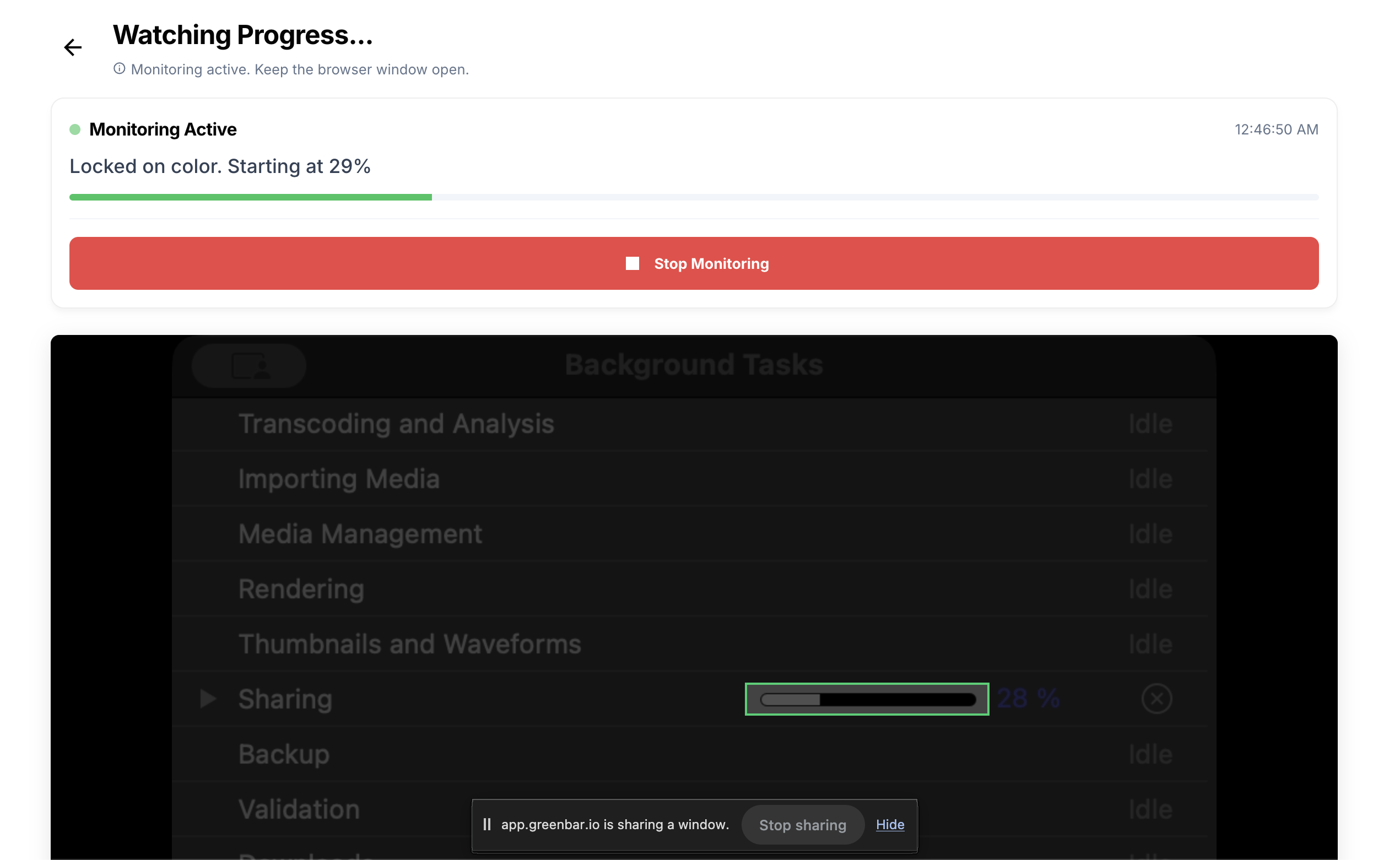
Setting Up Smart Color Watcher
Once you've shared the Background Tasks window:
- Select the Bar: Draw a box around the grey progress bar in the Background Tasks window.
- Start Monitoring: GreenBar will watch this specific area.
- Get Notified: As soon as the bar reaches 100%, you'll get a ping on your phone via Telegram.
Why This Works Best
By sharing only the Background Tasks window, you eliminate visual noise. GreenBar focuses entirely on the export progress, making the monitoring incredibly accurate. Plus, because FCP continues to update this window in the background, you can keep working on other things (if your system can handle it!) while GreenBar keeps an eye on the render.
Security for Unreleased Footage
Professional editors often work on projects under strict NDAs. Streaming your screen to a remote server or using cloud-based monitoring tools can violate these agreements.
GreenBar is designed with privacy as a priority:
- Local Processing: All pixel analysis and progress tracking happen locally on your Mac.
- No Screen Streaming: We never stream your screen, video preview, or timeline to our servers. GreenBar only "looks" at the pixels locally to check for the progress color.
- NDA Safe: Since no video frames leave your computer, your footage remains secure and private.
You can monitor your exports with peace of mind, knowing your client's footage isn't being broadcasted.